What is AWS SDK ?
The SDK or software development kit is a collection of tools, libraries and documentation provided by Amazon Web Services or AWS to help developers interact with AWS services in their applications.
These SDKs make it easier to integrate services into your applications by providing pre-built functions and classes that handle different aspects of interacting with AWS resources.
- AWS SDKs are available for different programming languages including but not limited to Java, Python, JavaScript or we can say NodeJS, .Net or C#, Ruby, go, PHP and many more.
This allows developers to use their preferred language when building applications that interact with AWS services.
- SDKs Provide pre-built APIs and functions that abstract the complexities of working with AWS services. And instead of manually crafting Http requests and handling low level interactions.
Developers can use these APIs to perform tasks like creating resources, fetching data, and managing configurations.
- AWS SDKs include mechanism for authenticating and authorizing your applications to access services securely.
This often involves using access keys, temporary security tokens, or other authentication methods.
- AWS SDKs provide service clients that encapsulate interactions with a specific services.
For example, the SDK for S3 provides a client for Amazon S3 that allows you to interact with S3 buckets and objects without worrying about low level details.
- AWS SDKs include error handling mechanism that help you understand responses from services.
This allows you to handle errors errors gracefully and take appropriate actions in your applications.
Integrate AWS SDK with Java
Go to the github page – https://github.com/aws/aws-sdk-java-v2
The AWS SDK for Java enables Java developers to easily work with Amazon Web Services and build scalable solutions with Amazon S3, Amazon DynamoDB, Amazon Glacier, and more.
The AWS SDK for Java 2.0 is a rewrite of 1.0 with some great new features. As with version 1.0, it enables you to easily work with Amazon Web Services but also includes features like non-blocking IO and pluggable HTTP implementation to further customize your applications.
Minimum requirements
To run the SDK you will need Java 1.8+. For more information about the requirements and optimum settings for the SDK, please see the Installing a Java Development Environment section of the developer guide.
Install the SDK
The recommended way to use the AWS SDK for Java in your project is to consume it from Maven.
Import the aws-java-sdk-bom and specify the SDK Maven modules that your project needs in the dependencies.
Importing the BOM
<dependencyManagement>
  <dependencies>
    <dependency>
      <groupId>software.amazon.awssdk</groupId>
      <artifactId>bom</artifactId>
      <version>2.25.12</version>
      <type>pom</type>
      <scope>import</scope>
    </dependency>
  </dependencies>
</dependencyManagement>
Then individual modules may omit the version from their dependency statement
<dependencies>
  <dependency>
    <groupId>software.amazon.awssdk</groupId>
    <artifactId>ec2</artifactId>
  </dependency>
  <dependency>
    <groupId>software.amazon.awssdk</groupId>
    <artifactId>s3</artifactId>
  </dependency>
  <dependency>
    <groupId>software.amazon.awssdk</groupId>
    <artifactId>dynamodb</artifactId>
  </dependency>
</dependencies>
Individual Services
Alternatively you can add dependencies for the specific services you use only:
<dependency>
  <groupId>software.amazon.awssdk</groupId>
  <artifactId>ec2</artifactId>
  <version>2.25.12</version>
</dependency>
<dependency>
  <groupId>software.amazon.awssdk</groupId>
  <artifactId>s3</artifactId>
  <version>2.25.12</version>
</dependency>
Whole SDK
You can import the whole SDK into your project (includes ALL services). Please note that it is recommended to only import the modules you need.
<dependency>
  <groupId>software.amazon.awssdk</groupId>
  <artifactId>aws-sdk-java</artifactId>
  <version>2.25.12</version>
</dependency>
See the Set up the AWS SDK for Java section of the developer guide for more usage information.
Creating a Project
Create Project and Add Dependencies
Open IntelliJ IDE and create a simple Maven project and all the dependencies in pom.xml file.
Your pom.xml will look like this :
<?xml version="1.0" encoding="UTF-8"?>
<project xmlns="http://maven.apache.org/POM/4.0.0"
         xmlns:xsi="http://www.w3.org/2001/XMLSchema-instance"
         xsi:schemaLocation="http://maven.apache.org/POM/4.0.0 http://maven.apache.org/xsd/maven-4.0.0.xsd">
    <modelVersion>4.0.0</modelVersion>

    <groupId>org.example</groupId>
    <artifactId>JavaAWSExamples</artifactId>
    <version>1.0-SNAPSHOT</version>

    <properties>
        <maven.compiler.source>18</maven.compiler.source>
        <maven.compiler.target>18</maven.compiler.target>
        <project.build.sourceEncoding>UTF-8</project.build.sourceEncoding>
    </properties>

    <dependencyManagement>
        <dependencies>
            <dependency>
                <groupId>software.amazon.awssdk</groupId>
                <artifactId>bom</artifactId>
                <version>2.25.12</version>
                <type>pom</type>
                <scope>import</scope>
            </dependency>
        </dependencies>
    </dependencyManagement>

    <dependencies>
        <dependency>
            <groupId>software.amazon.awssdk</groupId>
            <artifactId>iam</artifactId>
        </dependency>
    </dependencies>

</project>
Create Access key
Now there are different ways that you can just configure your credential.
One way is, AWS access key and also secret key.
For the user, when we view the details, you see a tab for ‘Security credentials’.
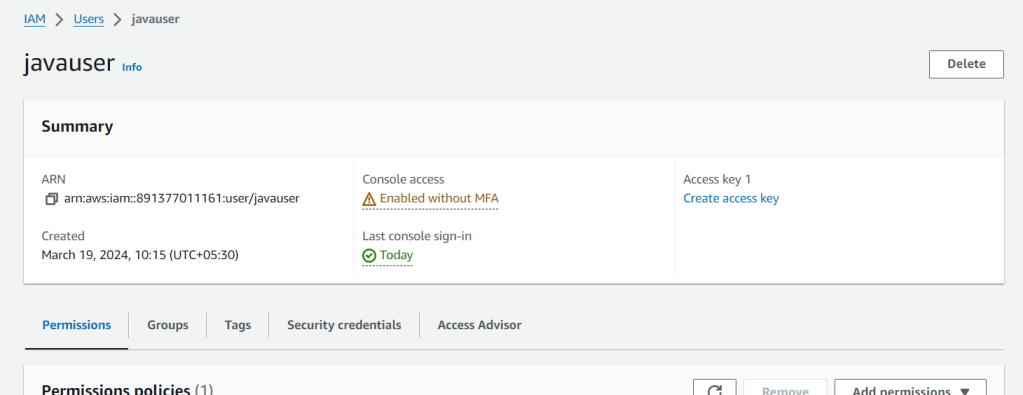
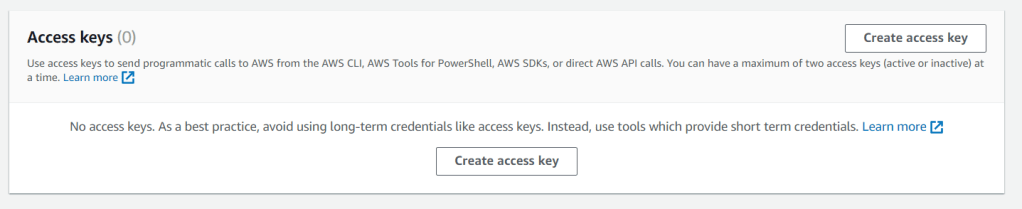
Use access keys to send programmatic calls to AWS from the AWS CLI, AWS Tools for PowerShell, AWS SDKs, or direct AWS API calls. You can have a maximum of two access keys (active or inactive) at a time.
Create access key and store them somewhere.
Configure credentials on your system using AWS CLI
For creating config and credentials file on your system.
Use command :
aws configure
Configure AWS CLI options. If this command is run with no arguments, you will be prompted for configuration values such as your AWS Access Key Id and your AWS Secret Access Key. You can configure a named profile using the “–profile” argument. If your config file does not exist (the default location is “~/.aws/config”), the AWS CLI will create it for you. To keep an existing value, hit enter when prompted for the value. When you are prompted for information, the current value will be displayed in “[brackets]”. If the config item has no value, it be displayed as “[None]”. Note that the “configure” command only works with values from the config file. It does not use any configuration values from environment variables or the IAM role.
Note: the values you provide for the AWS Access Key ID and the AWS Secret Access Key will be written to the shared credentials file (“~/.aws/credentials”).
Provide the details as it asks, and a config file will be created.
C:\Users\rnday>aws configure
AWS Access Key ID [None]: XXXXXXXXXXXXXXXXXXXXXX
AWS Secret Access Key [None]: XXXXXXXXXXXXXXXXXXXXXXXXXXXXXXXXXXXXX
Default region name [None]: ap-south-1
Default output format [None]: json

C:\Users\rnday>cd .aws
C:\Users\rnday\.aws>dir

19-03-2024  18:40    <DIR>          .
19-03-2024  18:40    <DIR>          ..
19-03-2024  18:40                47 config
19-03-2024  18:40               119 credentials
               2 File(s)            166 bytes
               2 Dir(s)  35,385,331,712 bytes free

C:\Users\rnday\.aws>

