Essential steps of creating your own AWS account.
How to create AWS account ?

Go to : https://aws.amazon.com
Whether you’re looking for generative AI, compute power, database storage, content delivery, or other functionality, AWS has the services to help you build sophisticated applications with increased flexibility, scalability, and reliability
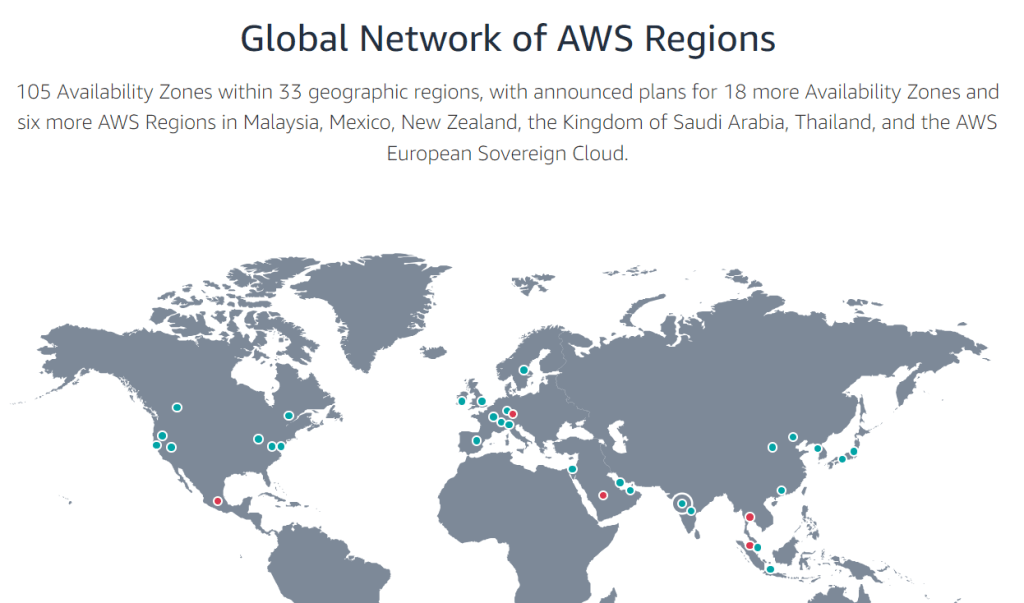
Steps to create account
go to aws.amazon.com and then click on –
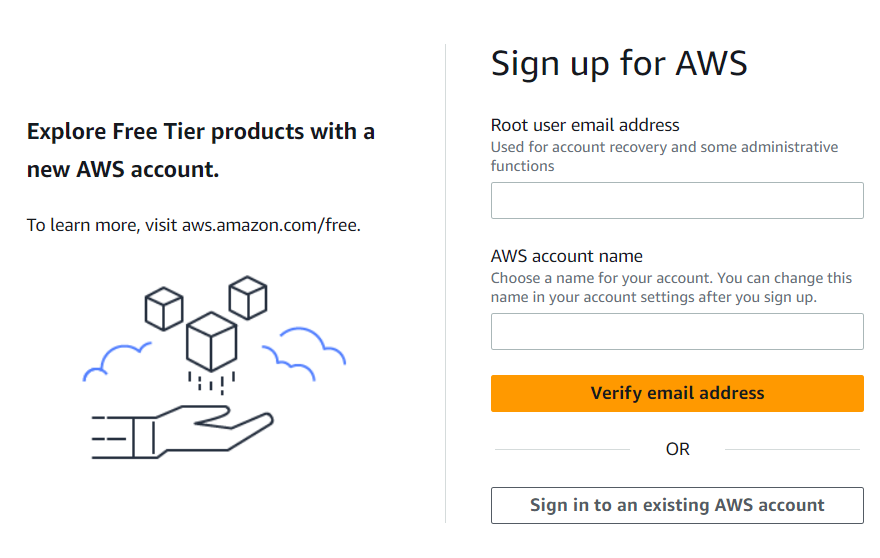
You need to sign up for using AWS services.
Account for Learning purpose
In the sign up page, You can see that Explore Free Tier products with the new AWS account. It means that when you create a new AWS account there are free tier for 12 months.
Go to this link https://aws.amazon.com/free/ — Gain free, hands-on experience with the AWS products and services.
More than 100 AWS products are available on AWS Free Tier today.
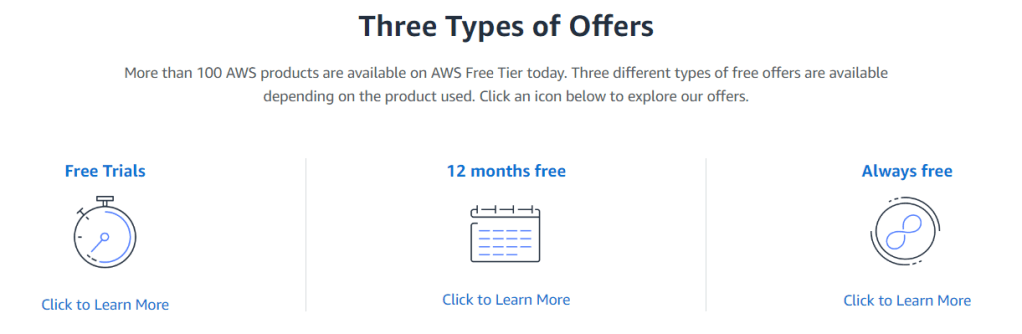
So it means that when you firstly create your account, there is a 12 month free tier that you can use and you can work with the services.
What you need to have?
You need to just have a active credit card. Now you don’t need to pay for anything.
For example when you want to create an account in AWS, you need to give your credit card information and there will be $1 charges and it will be back for you.
But they will get $1 charge on your card. And after that they will activate your account.
And you can just enjoy from the 12 month free tier.
Follow the steps by giving the details and you will be successfully registered.
Explore more than 100 products through free trials and always free offers to start building on Amazon Web Services using the Free Tier. Some offers are only available to new customers for 12 months following your Amazon Web Services sign-up date.
When your 12 month free usage term expires or if your application use exceeds the tiers, you simply pay standard, pay-as-you-go service rates (see each service page for full pricing details). For more details, see the offer terms.
Sign in to AWS account
After your AWS account has been created, then you can sign in to the account.
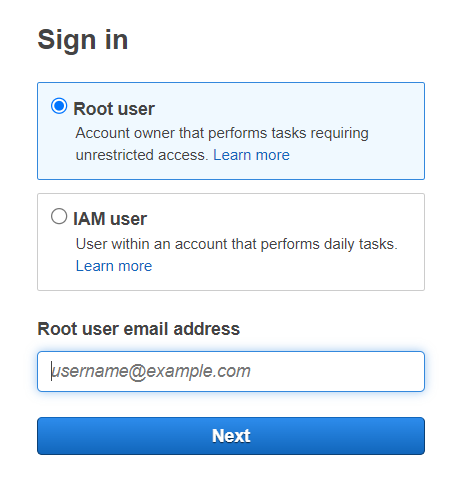
In the Sign in page, we have 2 sections –
- Root user – you have unrestricted access to your account
- IAM user
When you create an account, you create an account root user identity which you use to sign in to AWS. You can sign in to the AWS Management Console using this root user identity. That is the email address and also password that you provided when creating the account.
This combination of your email address and also password is also called your root user credentials when you use your root user credentials.
As a root user, You have complete, unrestricted access to all resources in your account, including access to your billing information and the ability to change your password.
After you enter your credentials, and are validated, you will be taken to management console page.
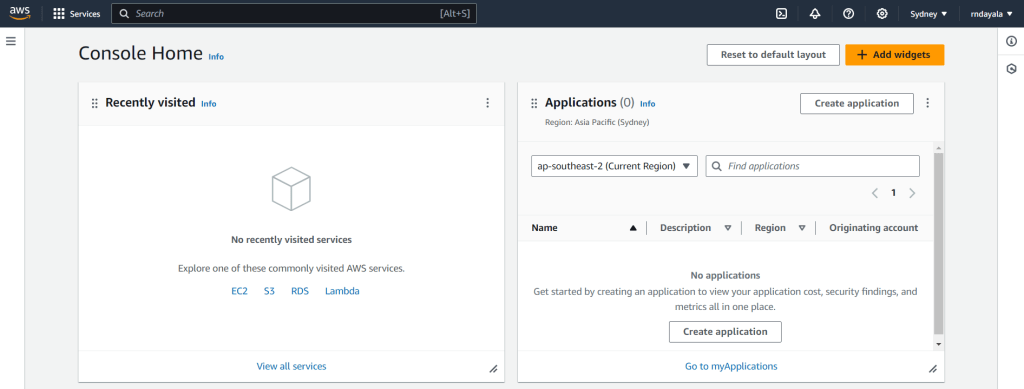
The management console is a web based interface provided by Amazon Web Services or AWS, that allows users to interact with and manage different AWS services and resources in a GUI manner.
Management console is designed to simplify the process of provisioning, configuring, monitoring, and managing cloud resources without needing to rely on command line tools or APIs.

