IAM Policies
IAM users are identities in the service.
When you create an IAM user, they can’t access anything in your account until you give them permissions.
You give permissions to a user by creating an identity based policy, which is a policy that’s attached to a user or a group to which the user belongs.
AWS policies are JSON documents that define permissions.
It allows you to control what actions are allowed or denied on AWS resources.
Also, IAM policies are fundamental components of managing access to resources securely. They define the rules that determine whether a given up entity, such as user, group, or rule, can perform specific actions on a specific resources or not.
Key Components
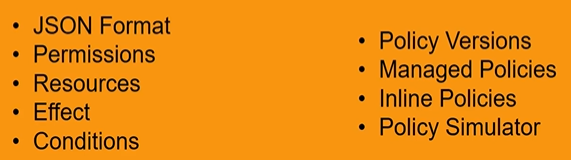
JSON Format
IAM policies are written in JSON format. This format makes it easy to define permissions and conditions and a structured way.
Permissions
IAM Policies proposes to specify permissions which define the actions that are allowed or denied.
Each action corresponds to a specific operation or resource manipulation.
Resources
IAM policies specify which AWS resources the permissions apply to. You can target a specific services, resource types, or even individual resources.
For example, you can specify permissions for a particular S3 bucket or a specific EC2 instance.
Effect
IAM Policies have an effect field that can be set to either allow or deny. This determines whether the permissions in the policy grant access allow or deny access.
For example, we can say deny to the specific resources we have.
Conditions
IAM policies can include conditions that further refine when a policy is applicable.
For example, you can restrict access based on IP address, range, time of day or the presence of multifactor authentication.
Policy Versions
IAM policies support multiple versions. When you update a policy, the old version is retained and it allows to roll back if needed.
You can also set a default version to ensure that users, groups and rules use the correct policy version.
Managed Policies
Managed Policies provides a set of predefined managed policies. These policies are contained, maintained by the AWS and can be attached to users, groups and roles.
ex: Amazon S3 read only access, Amazon S3 full access, etc.
For example, if we want for a user, the Amazon S3 service should be read only, we can attach the Amazon S3 read only access.
We want to create a user that he should access to a EC2 instances. For example, you can create EC2 instance instances, delete instances. Then we can attach Amazon EC2 full access to that user.
Inline Policies
These are policies that are directly attached to a user group or role. Inline policies offer more fine grained control over permissions for a specific entity.
Hands on working with IAM Users & Policies
After you login to your AWS account, you can search for IAM service.
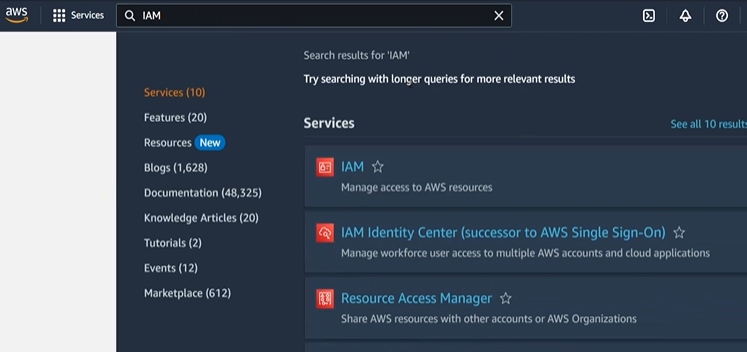
IAM page –
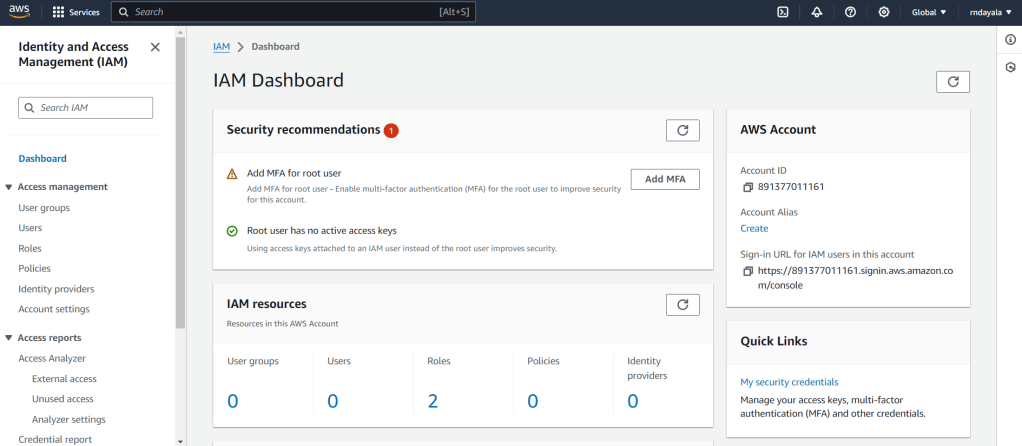
Currently, the region is set to Global. Why? Because, IAM is a global service.
Click on Users navigation to check all IAM users.
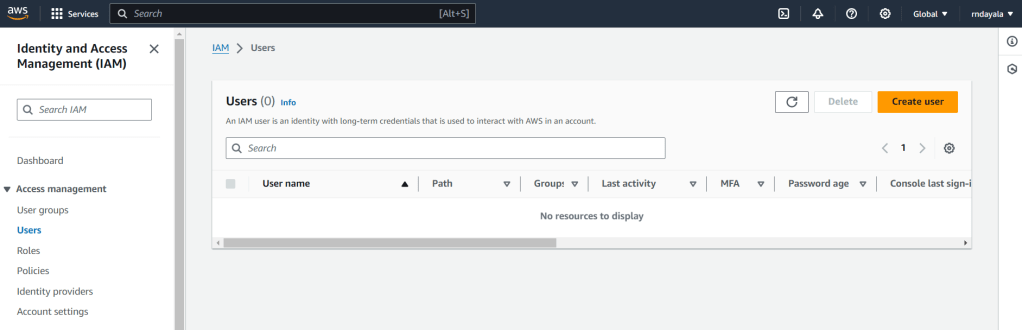
An IAM user is an identity with long-term credentials that is used to interact with AWS in an account.
Create User
Click on Create user, After that you need to give a username. For example I can just say ‘javauser’.
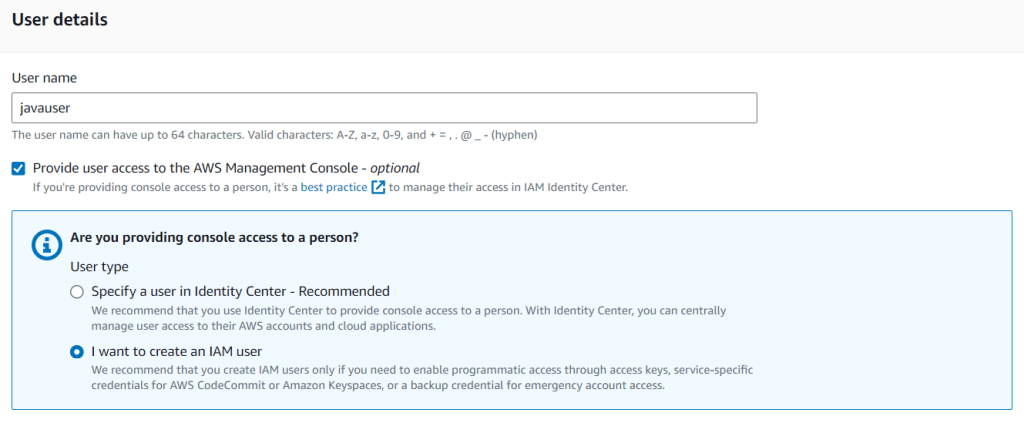
And after that we are going to just choose, provide user access to the AWS Management Console, because we want to login that user through the AWS Management Console.
And you can see if you are providing console access to a person, it’s best practice to manage their access and identity center. So right now we are not going to use the IAM Identity center. We want to just directly create the user.
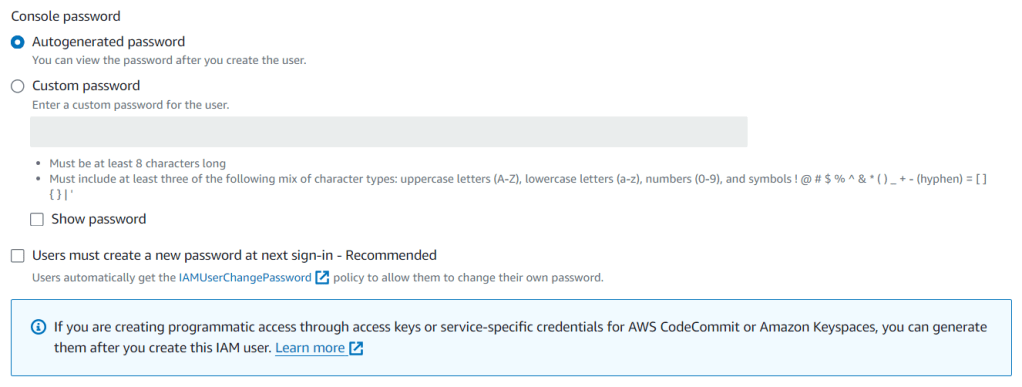
And here you need to give a password. You can give your own custom password. Or you can just use an auto generated password.
And also in here you can see that the users must create a new password at next sign in. This option is recommended.
For example, you have created a user when the user logged in. Then there will be a prompt that you should for example, create a new password or change your password. Okay, right now, I don’t want to use that. So I can just uncheck this.
But and real scenarios it’s recommended that you can just use this okay.
Click Next, you will see Permissions screen.
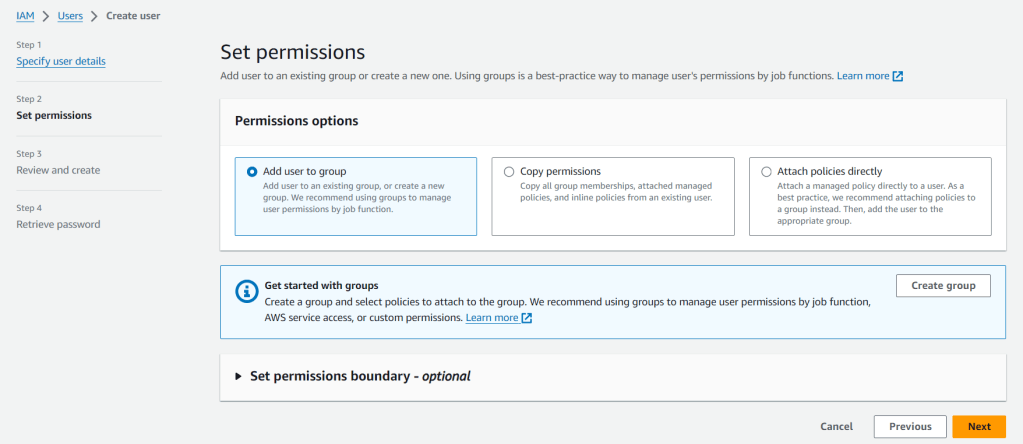
Here, Add user to an existing group or create a new one. Using groups is a best-practice way to manage user’s permissions by job functions.
At this moment, we have the user. Now it’s time to attach a policy to that user, a permission to that user.
We already have mentioned that when you create an IAM user, they can’t access, they cannot access anything in your account until you give them permission. You give permissions to a user by creating an identity based policy, which is a policy that is attached to the user or a group to which the user is belong.
Select ‘Attach policies directly’ – Attach a managed policy (built in policy from the AWS) directly to a user.
NOTE – As a best practice we recommend attaching policies to group instead. Then, add the user to the appropriate group.
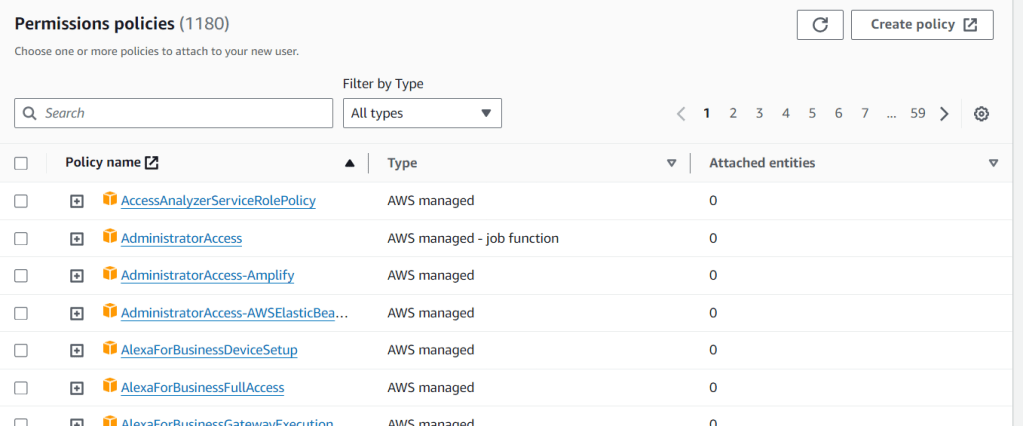
And here we have AdministratorAccess – If you give this administrator access policy to a user, if you attach that then that user will be able to do anything in your account. This user will be able to do or create any kind of resources in your on behalf of you in your account.
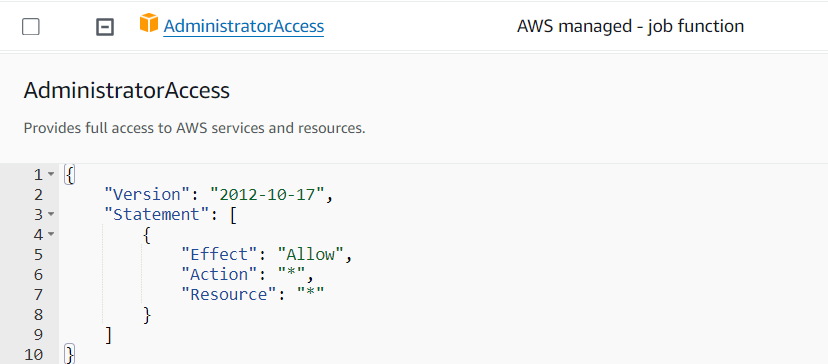
We have Effect which can be either allow or deny. So here we have allow. Allow means that we can do all actions on all resources in our AWS account. If we give this administrator access policy, if we attach this to a user then this will be the permissions to that user. He will be able to do all things, all actions on all of our resources.
Select this AdministratorAccess policy and click Next.
Review the details in this screen
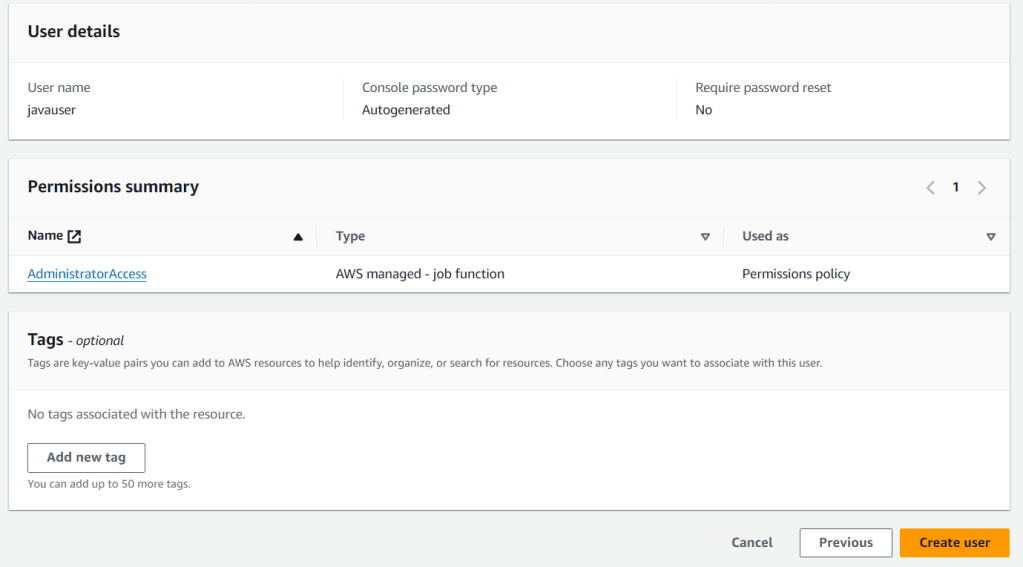
If you are okay with these details, click on Create user.
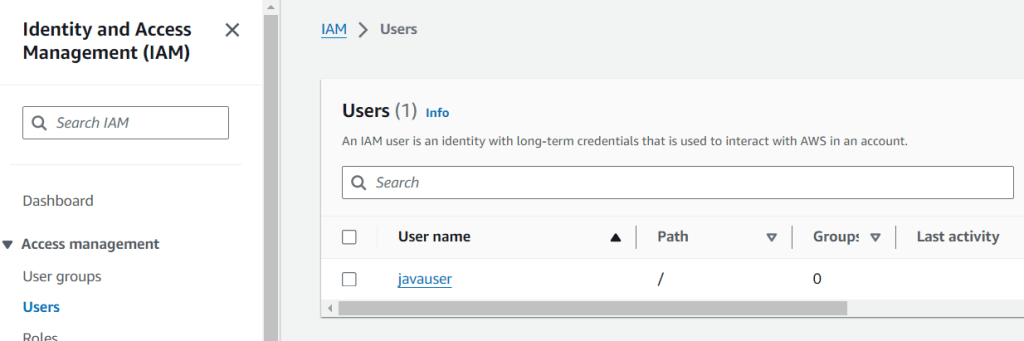
New user ‘javauser’ is created successfully and can be seen in Users page.
For this user, console access link will be given. Using that link, you can login to the user.
Console access link –
https://891377011161.signin.aws.amazon.com/console
Login page –
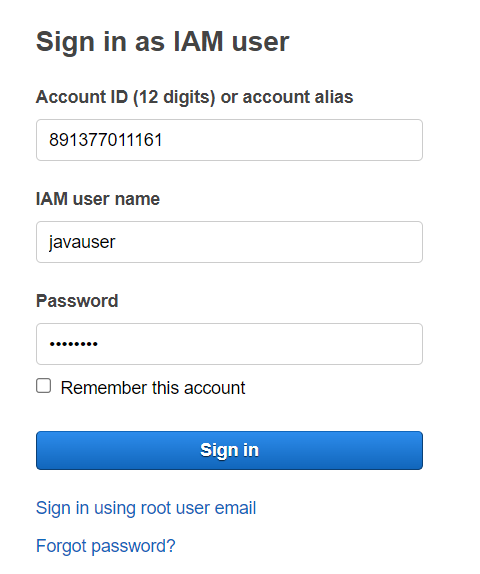
javauser console page –
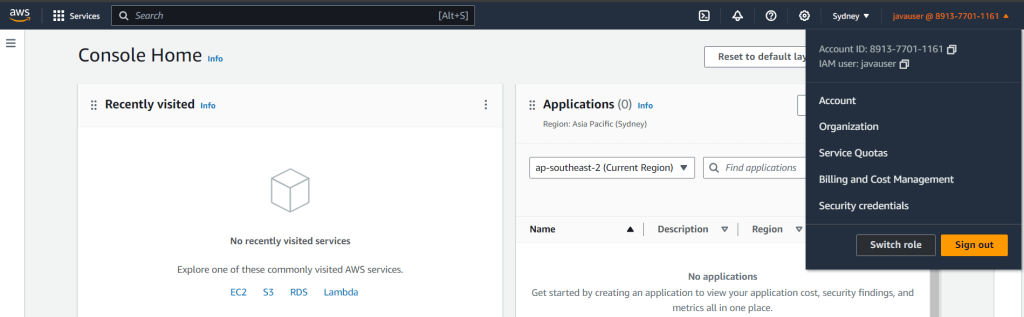
Now this user has full administrator access, then this user can create anything.
He can create, for example, S3 buckets. Can create EC2 instances, can create, for example, Elastic Beanstalk applications.

