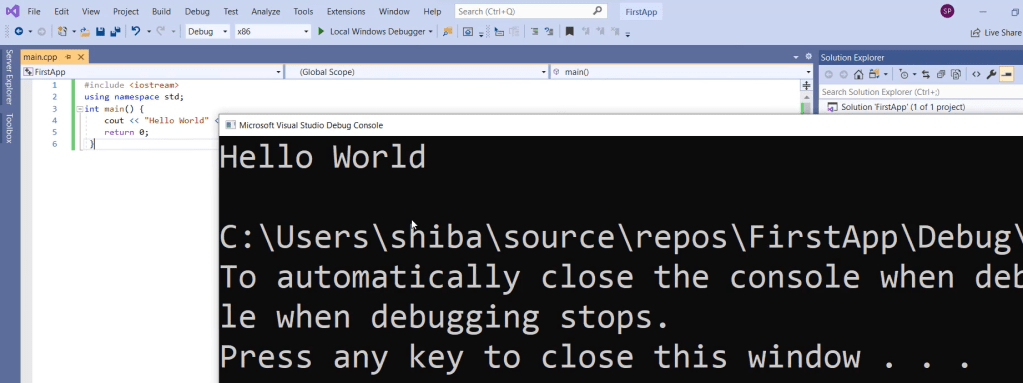
One of the most popular C++ IDEs on Windows OS.
What is Microsoft Visual Studio 2019 ?
Microsoft Visual Studio 2019 is an integrated development environment (IDE) that allows developers to create, test, and deploy applications for Windows, Android, iOS, and web platforms. It is a comprehensive suite of tools that includes a code editor, a debugger, a compiler, and other tools for building software.
Visual Studio 2019 supports several programming languages, including C++, C#, F#, Python, and JavaScript. It also has built-in support for popular frameworks and platforms like .NET, Azure, and Unity.
The IDE provides developers with a variety of features to enhance their productivity, such as code completion, debugging, refactoring, code analysis, and testing. It also includes built-in templates and wizards to simplify the creation of projects, and integration with version control systems like Git to make it easy to manage code changes.
Overall, Microsoft Visual Studio 2019 is a powerful and versatile development environment that helps developers create high-quality applications efficiently.
Install Visual Studio 2019 Community Edition
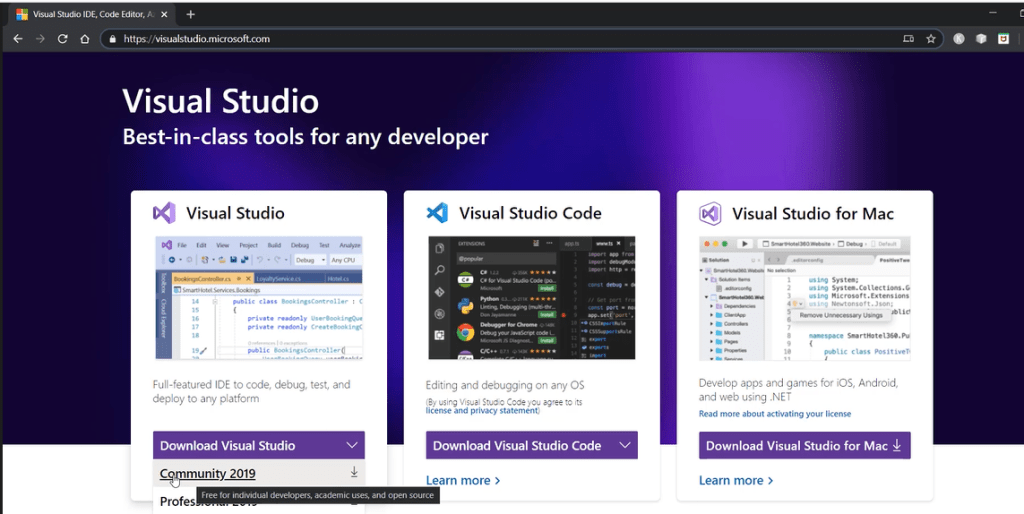
Step 1 – Go to the official Visual Studio website: https://visualstudio.microsoft.com/ and download the installer for the Community edition.
Step 2 – Run the downloaded installer and it will launch the installation screen where you need to select the components to install.
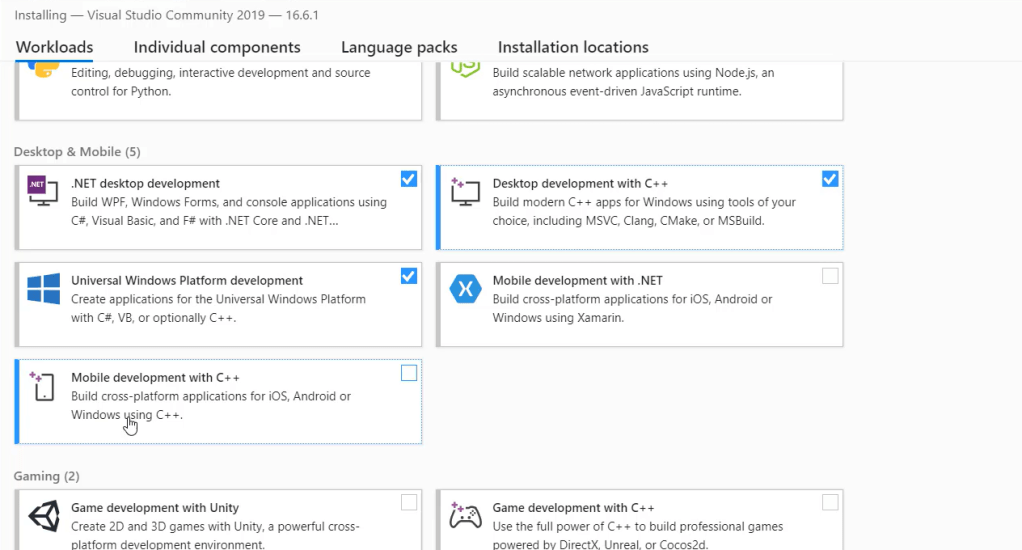
After you select the components, then click on ‘Install’.
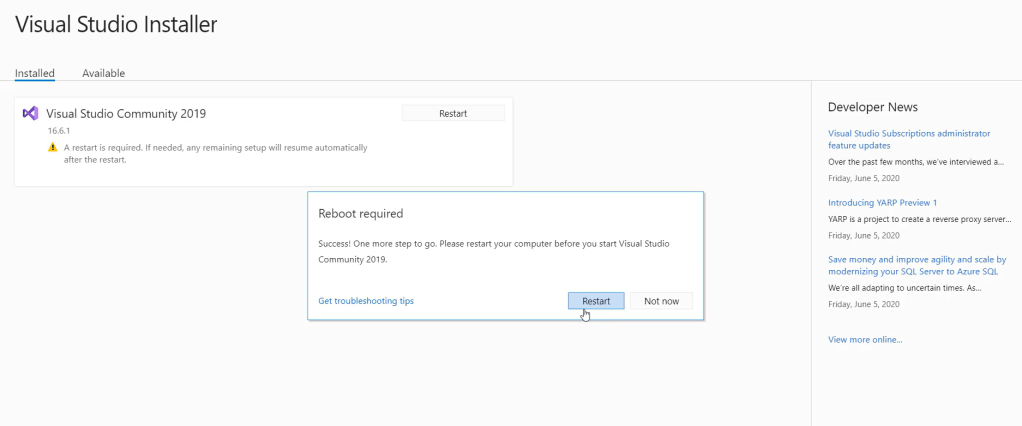
Step 3 – After the installation is completed, it will prompt for Restart of the machine.
Launch and Create Project in Microsoft Visual Studio 2019
step 1 – On the launch screen, you have an option to ‘Create a new Project’
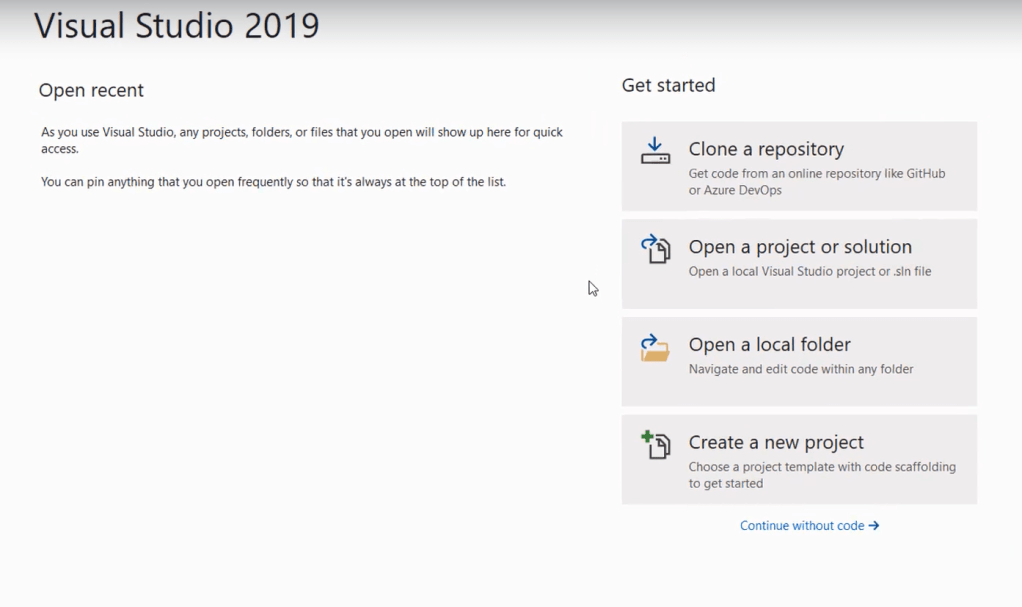
step 2 – create empty project of type c++ console project
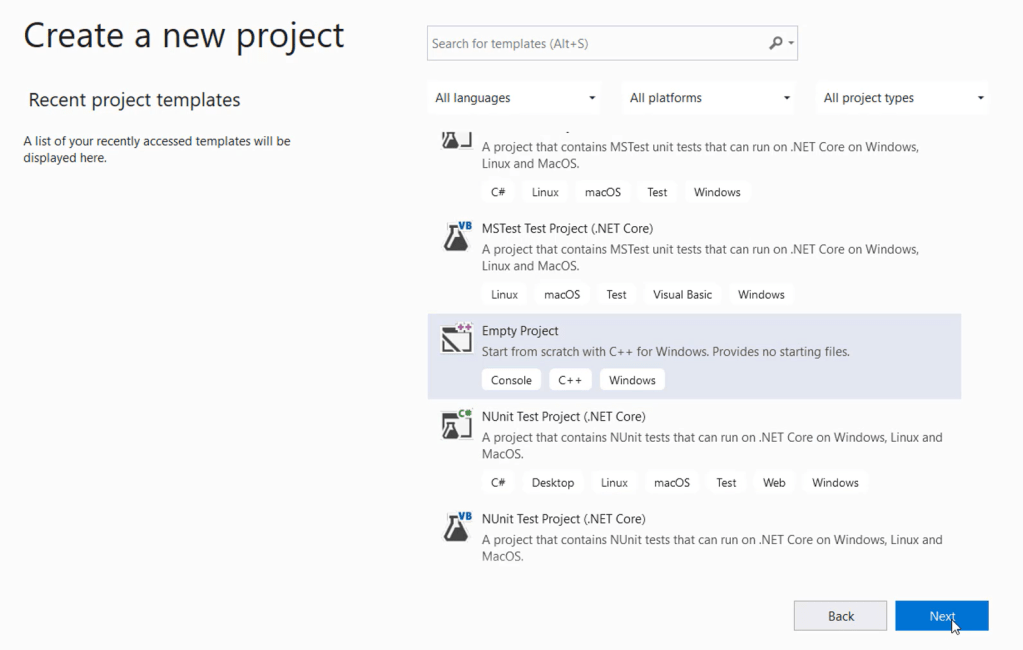
Step 3 – provide project details
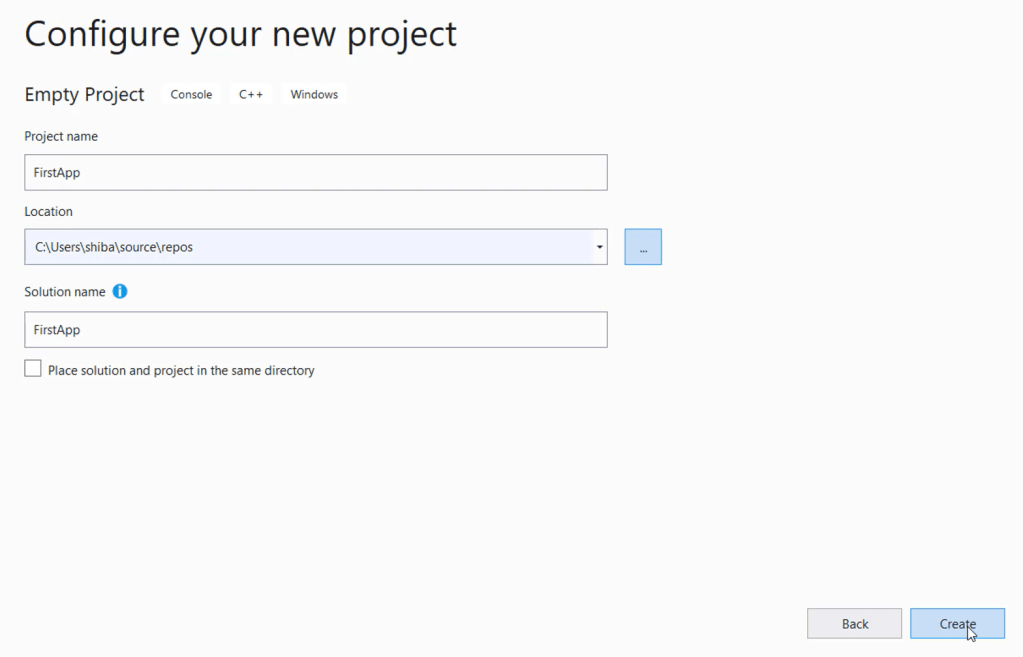
then click on ‘create’ button.
A new project gets created and this is how it looks in IDE.
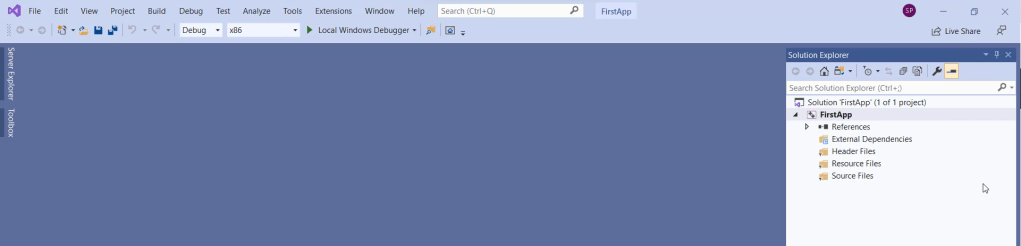
It creates an empty project.
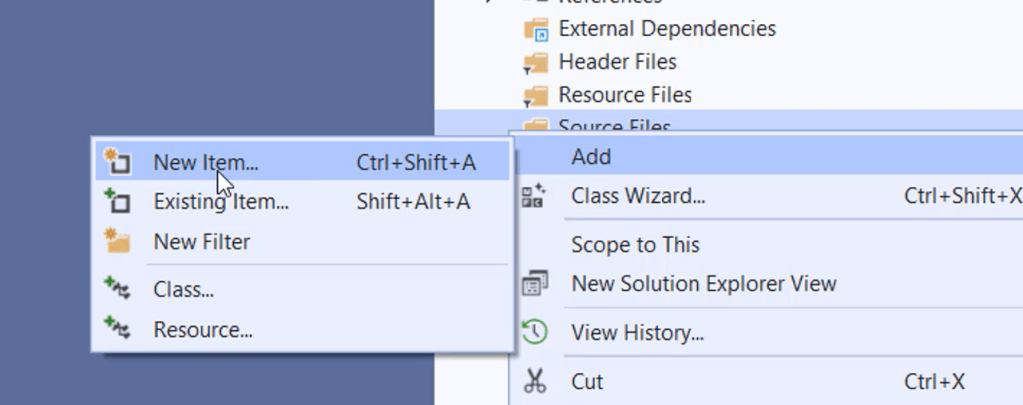
We need to add source files to the project. Right click on Source Files -> Add -> New item
select C++ file and provide the file name.
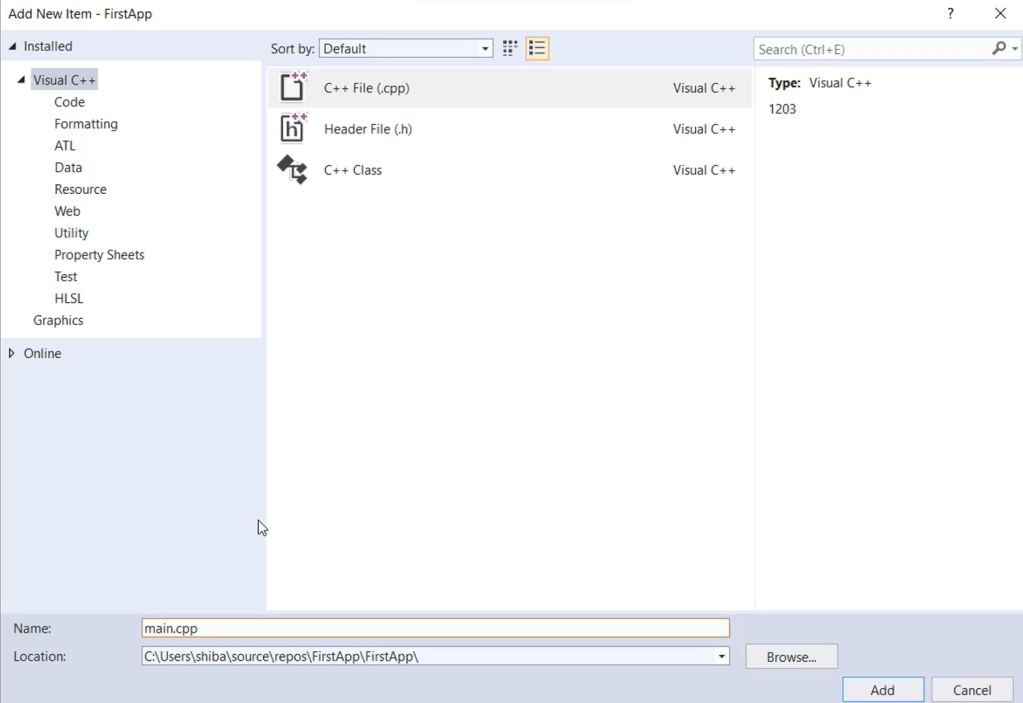
Write code into the main.cpp file
#include <iostream>
using namespace std;

int main() {
    std::cout << "Hello, world!" << std::endl;
    return 0;
}
After you write the code, you need to run the program.
For this :
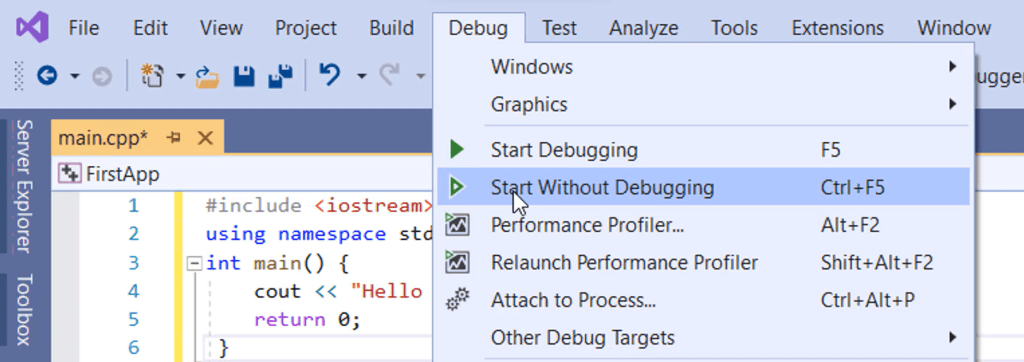
It first compiles and builds the executable and then runs the program.