What is Maven ?
Maven is a project management tool.
Maven is a tool used in software development to help manage projects.
Kind of tasks involved when working with projects :
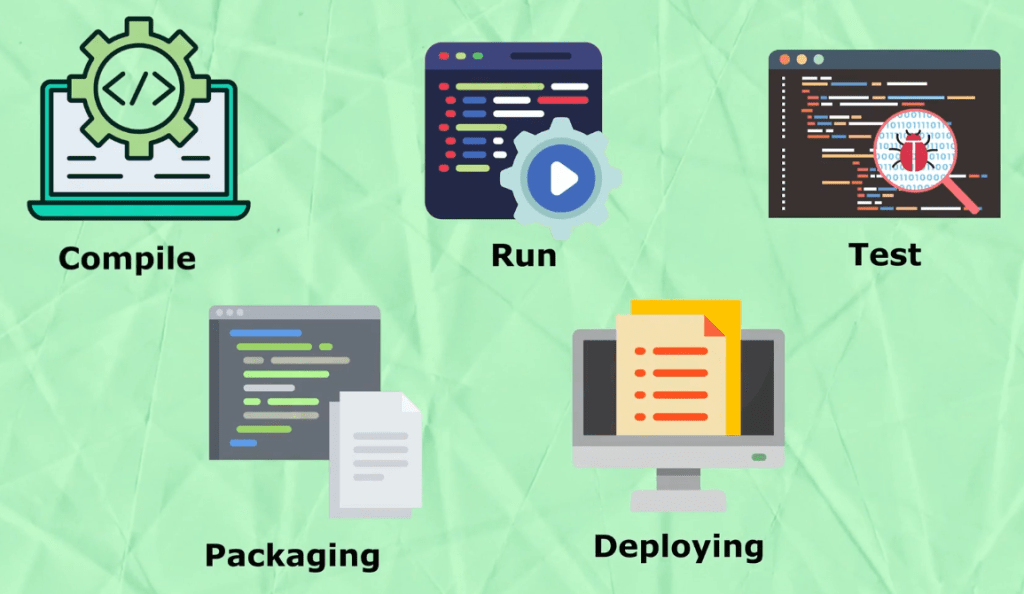
It automates the process of building, packaging, and managing dependencies (other pieces of code your project relies on) for Java-based projects.
–> It provides a standard way of organizing project files and handles tasks like compiling code, running tests, and creating executable files.
Overall, Maven simplifies and streamlines the development process by providing a structured framework for managing Java projects.
Maven dependency management is a crucial aspect of Maven’s functionality. In Maven, dependencies refer to external libraries or modules that your project relies on to function properly. Instead of manually downloading, managing, and configuring these dependencies, Maven automates the process.
Maven in IDE
What it is like, Working with Maven ?
Working with Maven involves several key steps:
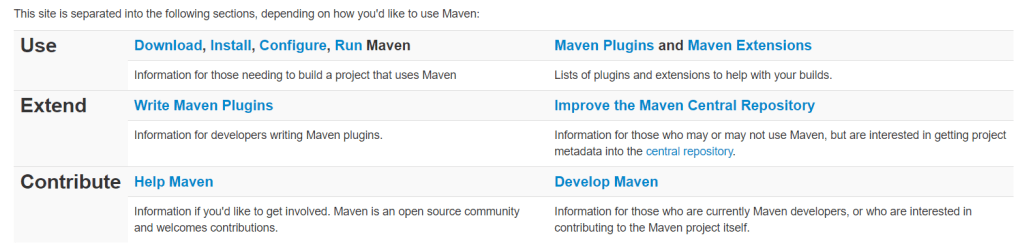
- Install Maven: First, you need to install Maven on your system. You can download the Maven binary distribution from the Apache Maven website and follow the installation instructions provided.
- You can download and install Maven as a standalone tool(command line tool) and can create, build projects.
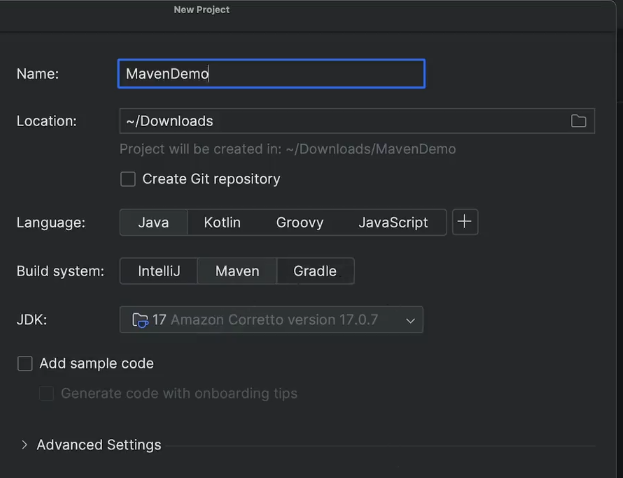
- However, most popular Integrated Development Environments (IDEs) like Eclipse, IntelliJ IDEA, and NetBeans have built-in support for Maven. You can import Maven projects into these IDEs and leverage their Maven integration for easier project management and development.
- Create a Maven Project: To start working with Maven, you need to create a Maven project. You can do this manually by creating the directory structure for your project and adding a
pom.xmlfile, or you can use Maven archetypes to generate a project template. - Define Project Configuration: You specify the configuration details for your project, including the project’s metadata (such as group ID, artifact ID, and version), dependencies, build plugins, repositories, and other settings.
- Manage Dependencies: Declare the dependencies your project relies on within the
pom.xmlfile. Maven will automatically download and manage these dependencies from remote repositories. - Build the Project: Use Maven commands to build your project. The most common command is
mvn clean install, which cleans the project, compiles the source code, runs tests, packages the project into a distributable format (such as JAR or WAR), and installs the artifact into your local Maven repository. - Run Tests: Maven includes support for running tests as part of the build process. You can write unit tests using testing frameworks like JUnit, and Maven will automatically execute these tests during the build.
- Manage the Project Lifecycle: Maven follows a lifecycle with predefined phases (such as validate, compile, test, package, install, and deploy). You can execute specific phases of the lifecycle using Maven commands.
- Customize Build Process: Maven allows you to customize the build process by configuring plugins and settings in the
pom.xmlfile. You can add additional plugins to perform tasks like code generation, static analysis, documentation generation, and more. - Deploy Artifacts: Once your project is built and tested, you can deploy the artifacts (e.g., JAR files) to a remote repository for sharing with other developers or deployment to production environments.
By following these steps, you can effectively work with Maven to manage and build your Java projects efficiently.
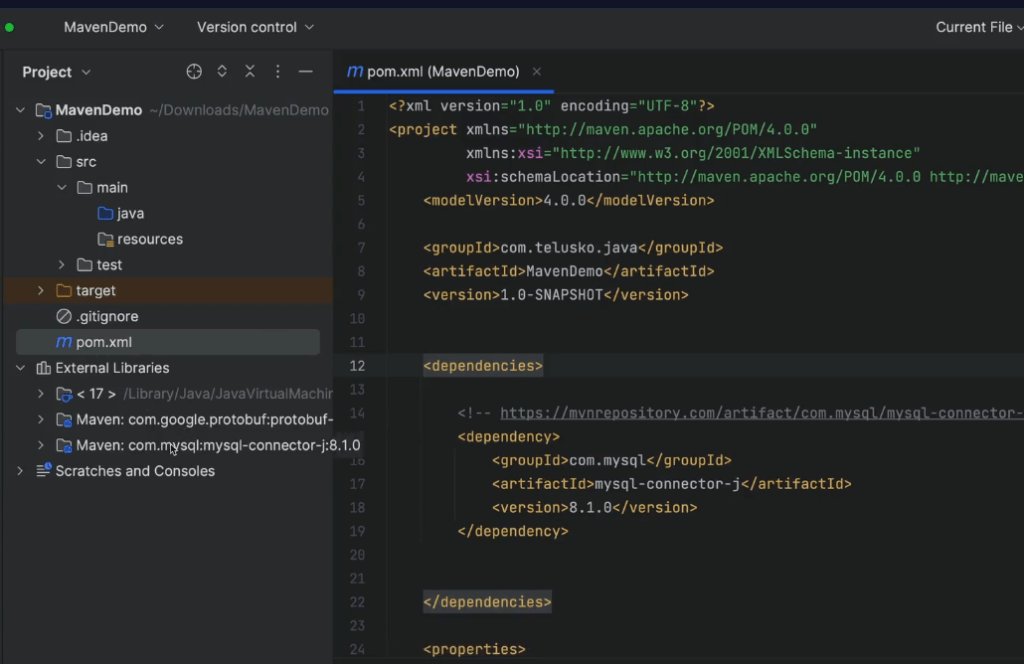
IntelliJ IDEA Maven project —
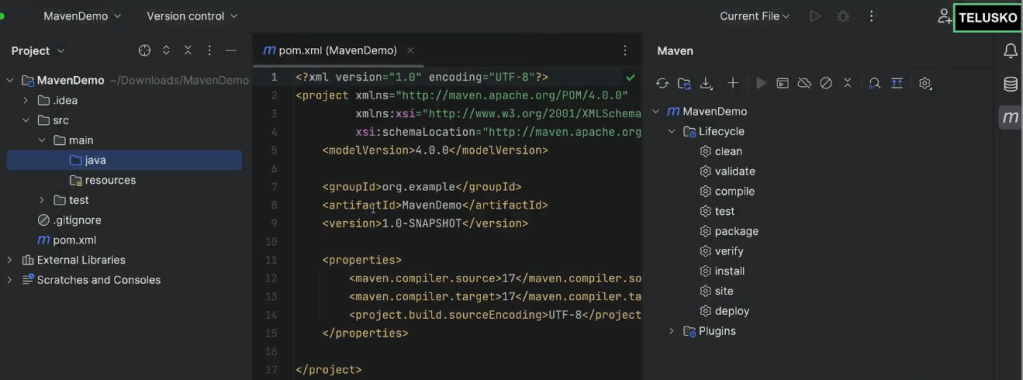
The project structure looks like this :
GAV details – Group, Artifact, Version
Every project will have :
- groupId – like package name
- artifactId – like project name
- version
In Maven, groupId, artifactId, and version are key elements used to uniquely identify and manage projects and dependencies:
- groupId: This represents the unique identifier of the project’s group or organization. It’s typically in reverse domain name notation, similar to Java package naming conventions. For example, if your organization’s domain is
example.com, your groupId might becom.example. It helps to ensure that your project’s artifacts are globally unique. - artifactId: This is the unique identifier of the project’s artifact (e.g., JAR file, WAR file). It’s usually the name of the project. It allows Maven to distinguish between different artifacts within the same group. For example, if your project is named
my-project, your artifactId would bemy-project. - version: This specifies the version of the project or dependency. It helps to manage different versions of the same artifact. Versions typically follow a semantic versioning scheme (e.g.,
1.0.0,2.1.3). Maven uses version numbers to resolve dependencies and ensure compatibility between different components of your project.
<project xmlns="http://maven.apache.org/POM/4.0.0" xmlns:xsi="http://www.w3.org/2001/XMLSchema-instance" xsi:schemaLocation="http://maven.apache.org/POM/4.0.0 http://maven.apache.org/xsd/maven-4.0.0.xsd">
    <modelVersion>4.0.0</modelVersion>
    <groupId>com.example</groupId>
    <artifactId>my-project</artifactId>
    <version>1.0.0</version>
    ...
</project>
In this example, groupId is com.example, artifactId is my-project, and version is 1.0.0. These elements together uniquely identify the project and its artifacts and are essential for dependency management, artifact resolution, and project building in Maven.
Archetypes in Maven
In Maven, archetypes are templates or patterns that allow you to quickly generate project structures. They provide a predefined project structure, along with initial configuration files and settings, to kickstart the development process.
Instead of manually creating project structures and configuration files, you can use archetypes to generate them automatically. Maven provides a set of predefined archetypes for different types of projects, such as web applications, JAR libraries, and more.
Here are a few examples of commonly used archetypes in Maven:
- maven-archetype-quickstart: This archetype creates a simple Java project with a basic directory structure and a sample Java class. It’s suitable for getting started with small Java projects or experimenting with Maven.
- maven-archetype-webapp: This archetype generates a standard web application project structure, including directories for HTML, CSS, JavaScript, and WEB-INF. It’s commonly used for developing web applications using technologies like Servlets and JSP.
- maven-archetype-jar: This archetype sets up a project for creating a JAR (Java Archive) library. It includes a basic Java class and a configuration file. This archetype is useful for creating reusable libraries or components in Java.
- spring-boot-archetype: This archetype generates a Spring Boot project structure with configurations suitable for developing Spring Boot applications. It includes predefined settings for Spring Boot dependencies, configurations, and packaging options.
These are just a few examples of archetypes available in Maven. Depending on your specific requirements, you can choose an appropriate archetype to kickstart your project development and customize it further as needed.
Dependency Management – Handling Dependencies
dependencies are in the form of JAR files.
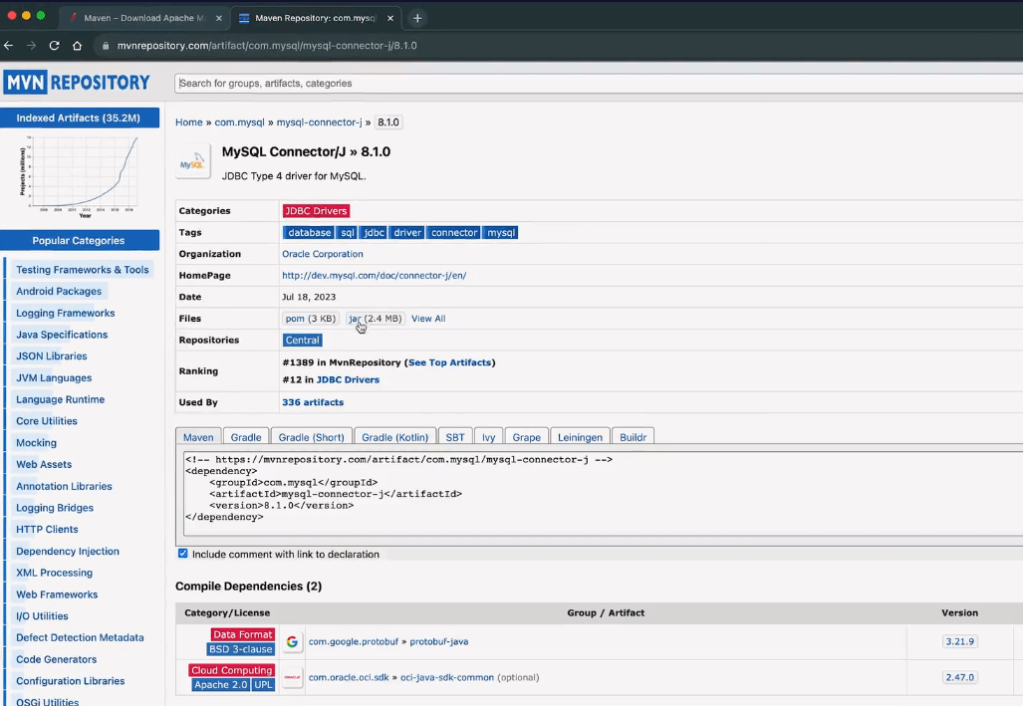
We need to add dependencies in pom.xml file.
POM – Project Object Model.
Here, we have added mysql dependency to the pom.xml file and update/reload the project. Maven will download and add all the required jar files to the project.