This is mainly for the beginners of Java to get started with Maven, and eclipse.
Set up folders
1) C:\tools to install Java development tools like JDK, Maven, Eclipse IDE, etc.
Create a sub-folder “jdk-8u131-windows-x64” to install JDK “8u131”.
2) C:\projects to store your Java projects.
3) C:\scripts to store any DOS or Unix scripts.
Pick your own folder. It could be under “C:\users\john\tools\java\jdk-8u131-windows-x64”, “C:\users\john\projects”, etc.
It is important to separate “tools“, “projects“, and “scripts“.
Install Java
Step 1: Download and install latest “Java SE Development Kit” (i.e. JDK) version “X” from
http://www.oracle.com/technetwork/java/javase/overview/index.html
by clicking on the “Downloads” tab. Select the “Java SE Platforms” and “Java” button.
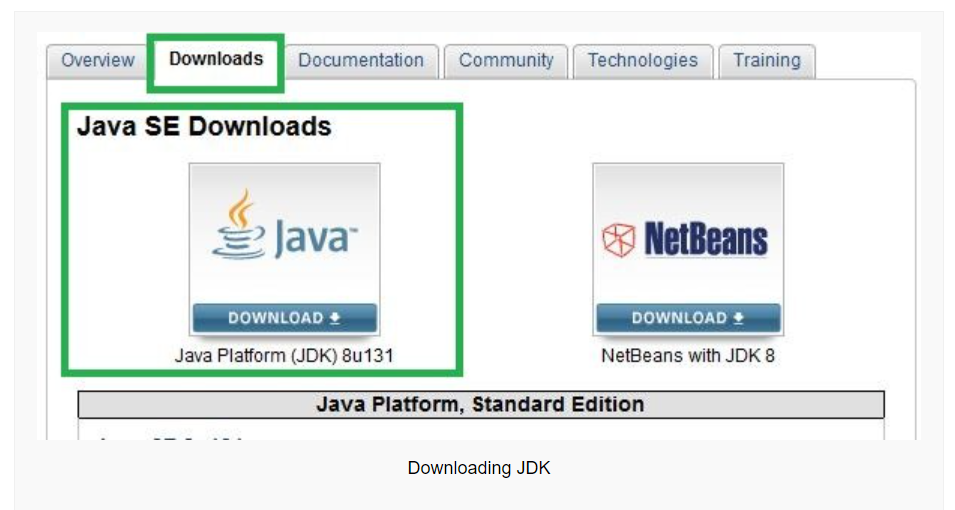
Pick the Java SE Development Kit X Downloads, where “X” is the major version like 8, you will have the minor updates marked as say “u131“, etc.
Make sure that you download and install the right version for the operating system on which you will be running — for example Windows (32 bit or 64 bit), Linux, Solaris, MAC, etc. You will need both the JDK and the JRE.
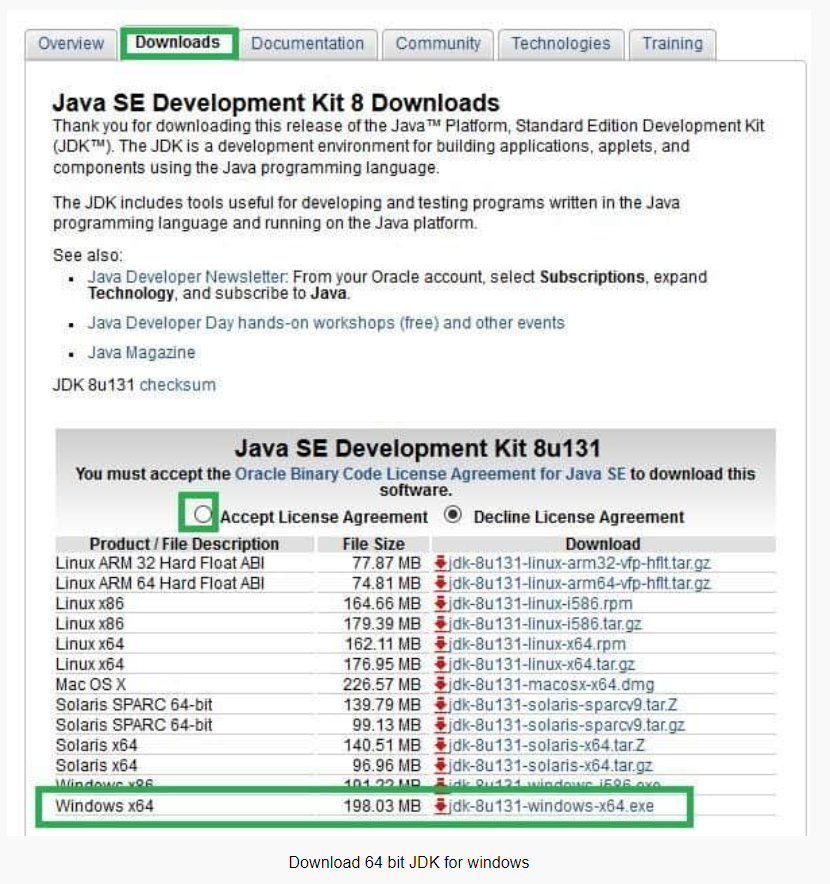
Double click on the downloaded file “jdk-8u131-windows-x64.exe”, and follow the installation prompts and choose to change to “C:\tools\jdk-8u131-windows-x64” or whatever the folder you chose earlier.
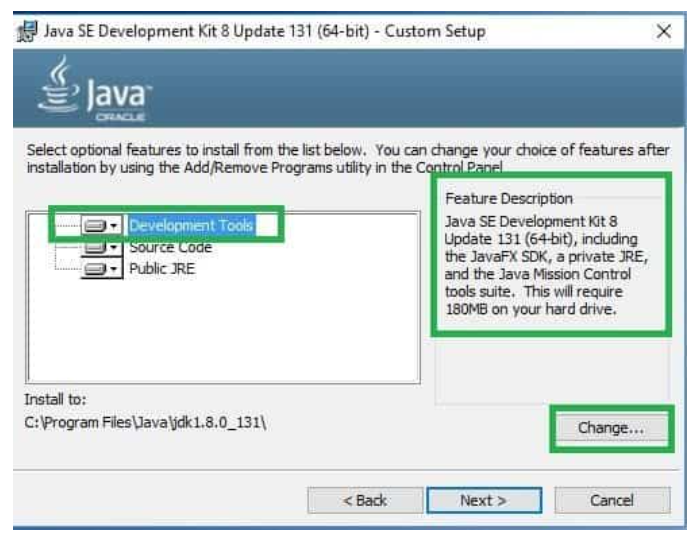
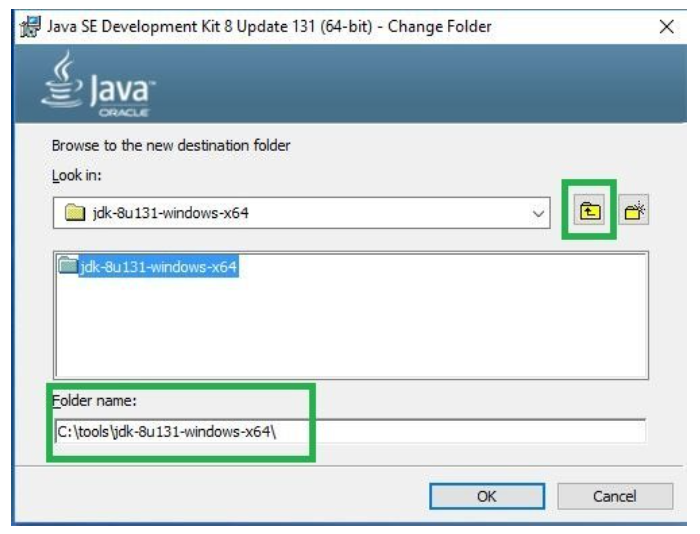
Verify Java Installation
Step 1: Go to the installation folder, for example “C:\tools\jdk-8u131-windows-x64” to verify the presence of relevant files required for compiling & running Java.
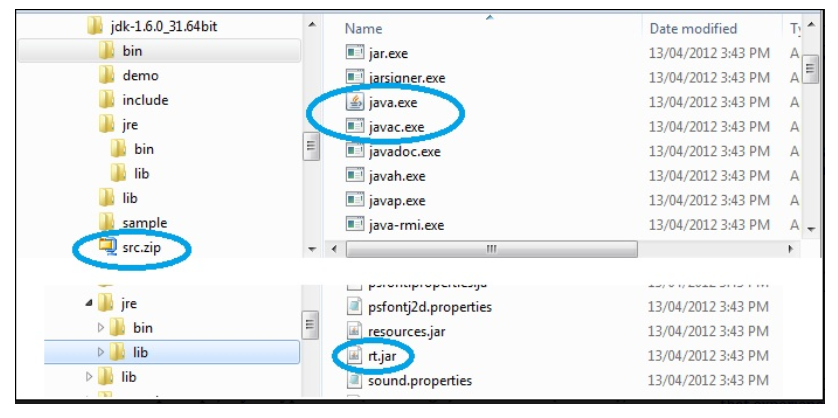
The javac.exe is the compiler that converts a source file (e.g. HelloWorld.java) to a byte code file (e.g. HelloWorld.class). The java.exe is the run-time command to execute a program (i.e. java HelloWorld). The src.zip is where all the Java API (i.e. Java library) source (i.e. .java) files are located and rt.jar is where the Java API run-time class files (i.e. class) are located.
 Bits, Bytes and Brains