These SQL commands are run on MySQL :
To connect to MySQL
mysql -u root -p
<-- it will prompt for password -->
To list available databases
SHOW DATABASES;
Create Database
The general command for creating a database:
CREATE DATABASE <database_name>;
CREATE DATABASE soap_store;
Drop database
DROP DATABASE <database-name>;
To use a database
USE <database-name>;
Create table
syntax :
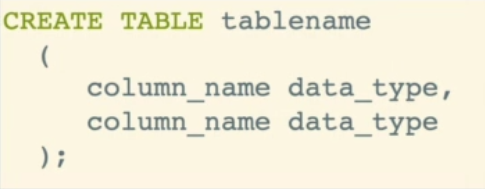
    CREATE TABLE cats (
        name VARCHAR(50),
        age INT
    );

    CREATE TABLE dogs (
        name VARCHAR(50),
        breed VARCHAR(50),
        age INT
    );
Display all tables in database / Table Structure
SHOW TABLES;
SHOW COLUMNS FROM <tablename>;    <-- this command to see the table structure
(or)
DESC <tablename>;
Dropping tables / Deleting table
-- To drop a table
DROP TABLE <tablename>;
Create the table:
    CREATE TABLE pastries
      (
        name VARCHAR(50),
        quantity INT
      );
-- table creation
CREATE TABLE IF NOT EXISTS APP_LOGS
(
    LOG_ID              INT AUTO_INCREMENT NOT NULL UNIQUE KEY,
    DB_SESSION_ID       INT                NOT NULL,
    MODULE              VARCHAR(255)           NULL,
    TYPE                VARCHAR(16)            NULL,
    MESSAGE             TEXT                   NULL,
    LOG_DATE            TIMESTAMP   NOT NULL DEFAULT CURRENT_TIMESTAMP
);
View tables:
SHOW TABLES;View details of pastries table:
DESC pastries;Delete the whole pastries table:
DROP TABLE pastries;INSERT: The Basics
-- while inserting data - the order matters : column names and the data values
INSERT INTO cats (name, age) VALUES ('Blue Steele', 5);

-- switching order of age and name
INSERT INTO cats (age, name) VALUES (3, 'Scottish Beth');

INSERT INTO cats (name, age)
       VALUES ('Jenkins', 7);


-- after inserting data, if you want to know data exists or not
-- To view all rows in our table
SELECT * FROM cats;
Multiple Inserts
-- inserting multiple rows with a single INSERT statement
INSERT INTO cats (name, age)
       VALUES
          ('Meatball', 5),
          ('Turkey', 1),
          ('Potato Face', 15);
Exercise :
    CREATE TABLE people
      (
        first_name VARCHAR(20),
        last_name VARCHAR(20),
        age INT
      );

    INSERT INTO people(first_name, last_name, age)
    VALUES ('Tina', 'Belcher', 13);

    INSERT INTO people(age, last_name, first_name)
    VALUES (42, 'Belcher', 'Bob');

    --  inserting multiple rows with single INSERT statement
    INSERT INTO people(first_name, last_name, age)
           VALUES
                ('Linda', 'Belcher', 45),
                ('Phillip', 'Frond', 38),
                ('Calvin', 'Fischoeder', 70);
Using NOT NULL
    CREATE TABLE cats2 (
        name VARCHAR(100) NOT NULL,
        age INT NOT NULL
    );
Quotation marks
It is a good practice to wrap up text related data in single quotes. If data contains single quotes, u can use escape sequences.
INSERT INTO shops (name) VALUES ('shoe emporium');

-- use escape sequence to include single quote in text value
INSERT INTO shops (name) VALUES ('mario\'s pizza');

INSERT INTO shops (name) VALUES ('she said "haha"');
DEFAULT values
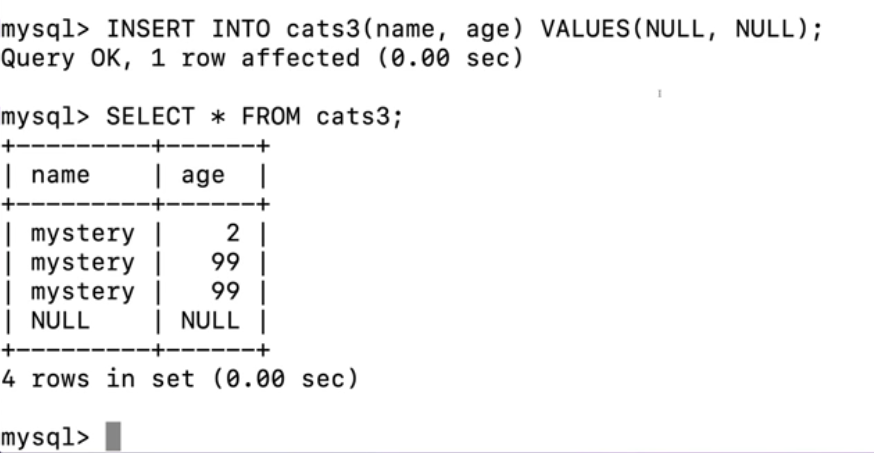
CREATE TABLE cats3  (
        name VARCHAR(20) DEFAULT 'no name provided',
        age INT DEFAULT 99
);

INSERT INTO cats3(age) VALUES(2);

INSERT INTO cats3() VALUES();
Having DEFAULT value for a column doesn’t guarantee that it can’t have NULL values. We can manually set NULL value for that column.
Combine NOT NULL and DEFAULT
CREATE TABLE cats4  (
        name VARCHAR(20) NOT NULL DEFAULT 'unnamed',
        age INT NOT NULL DEFAULT 99
);
Primary Key
-- creating primary key for the table
-- this method is useful if primary key is based on single column
CREATE TABLE unique_cats (
    	cat_id INT PRIMARY KEY,
        name VARCHAR(100) NOT NULL,
        age INT
);
another option of specifying primary key :
-- creating primary key after all columns are specified
-- this option is useful if we have primary key of multiple columns
CREATE TABLE unique_cats2 (
    	cat_id INT,
        name VARCHAR(100),
        age INT,
        PRIMARY KEY (cat_id, name)
);
Primary keys cannot be NULL. So it is redundant to specify NOT NULL for the columns that are part of primary key.
Primary key constraints are NOT NULL.
AUTO_INCREMENT
automatically increment for each row inserted into the table, starting with value 1 (by default).
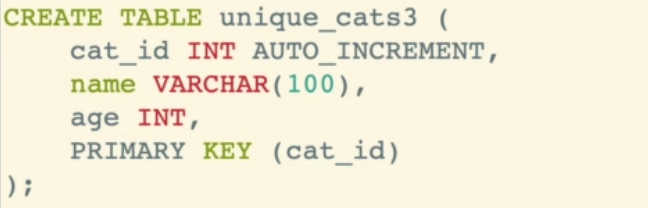
CREATE TABLE unique_cats3 (
      cat_id INT AUTO_INCREMENT PRIMARY KEY,
      name VARCHAR(100) NOT NULL,
      age INT NOT NULL
);
To change default value for AUTO_INCREMENT :
ALTER TABLE <tablename> AUTO_INCREMENT = 100;
This statement alters the table’s AUTO_INCREMENT value to start from 100. Note that this statement will only affect future inserts into the table. If there are existing rows in the table with lower primary key values, they will not be modified. The next insert operation will use 100 as the starting value for the AUTO_INCREMENT column.
Exercise – Creating EMPLOYEES table
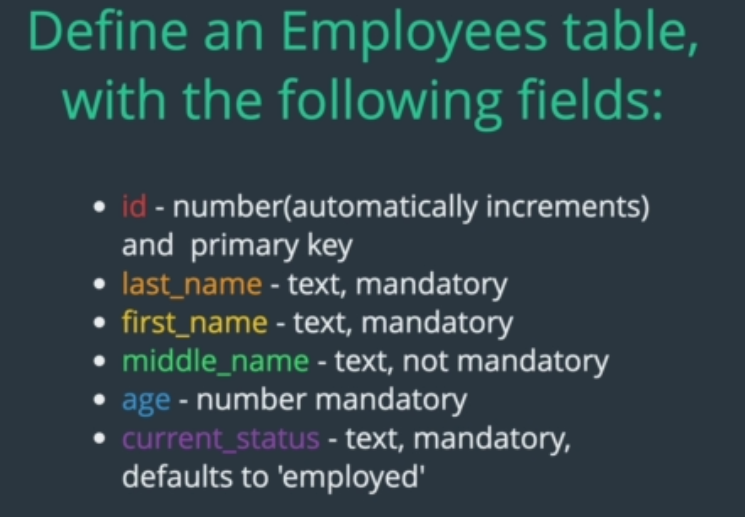
CREATE TABLE employees (
        id INT AUTO_INCREMENT,
        first_name VARCHAR(255) NOT NULL,
        last_name VARCHAR(255) NOT NULL,
        middle_name VARCHAR(255),
        age INT NOT NULL,
        current_status VARCHAR(255) NOT NULL DEFAULT 'employed',
        PRIMARY KEY(id)
);

-- inserting a row into the table
INSERT INTO employees(first_name, last_name, age)
       VALUES ('Dora', 'Smith', 58);
Creating new Table and populating with Data
    DROP TABLE cats;

    -- creating a table
    CREATE TABLE cats (
        cat_id INT AUTO_INCREMENT,
        name VARCHAR(100),
        breed VARCHAR(100),
        age INT,
        PRIMARY KEY (cat_id)
    );

    -- populating data ino table
    INSERT INTO cats(name, breed, age)
      VALUES ('Ringo', 'Tabby', 4),
             ('Cindy', 'Maine Coon', 10),
             ('Dumbledore', 'Maine Coon', 11),
             ('Egg', 'Persian', 4),
             ('Misty', 'Tabby', 13),
             ('George Michael', 'Ragdoll', 9),
             ('Jackson', 'Sphynx', 7);

    -- reading data from table
    -- To get all the columns
    SELECT * FROM cats;

    -- To only get the age column
    SELECT age FROM cats;

    -- To select multiple specific columns
    SELECT name, breed FROM cats;
WHERE Clause
-- Use where to specify a condition
SELECT * FROM cats WHERE age = 4;

SELECT * FROM cats WHERE name ='Egg';
By default, MySQL’s SELECT queries are case-insensitive for string comparisons. By default, MySQL uses a case-insensitive collation, such as utf8_general_ci (CI stands for case-insensitive) or utf8mb4_general_ci. In this case, string comparisons in SELECT queries are case-insensitive.
SELECT * FROM table_name WHERE column_name = 'apple';
This query would match rows with values ‘apple’, ‘Apple’, or ‘APPLE’.
If you need case-sensitive comparisons in your SELECT query, you can explicitly specify a case-sensitive collation, such as utf8_bin (BIN stands for binary).
SELECT * FROM table_name WHERE column_name COLLATE utf8_bin = 'apple';
This query would only match rows with the exact value ‘apple’, considering the case.
The case sensitivity behavior can also be defined at the column level. By specifying a case-sensitive collation for a specific column, you can override the default behavior for that column.
CREATE TABLE table_name (
    column_name VARCHAR(50) COLLATE utf8_bin
);
In this case, the column_name column would have a case-sensitive collation.
Aliases
Use ‘AS’ to alias a column in your results. It is used to rename column so that it is easier to understand.
SELECT cat_id AS id, name FROM cats;UPDATE statement
Good Thumb rule – Test your WHERE clause with SELECT query before trying out with UPDATE / DELETE statements.
UPDATE cats SET breed='Shorthair' WHERE breed='Tabby';

UPDATE cats SET age=14 WHERE name='Misty';

-- More exercises

SELECT * FROM cats WHERE name='Jackson';

UPDATE cats SET name='Jack' WHERE name='Jackson';

SELECT * FROM cats WHERE name='Jackson';

SELECT * FROM cats WHERE name='Jack';

SELECT * FROM cats WHERE name='Ringo';

UPDATE cats SET breed='British Shorthair' WHERE name='Ringo';

SELECT * FROM cats WHERE name='Ringo';

SELECT * FROM cats;

SELECT * FROM cats WHERE breed='Maine Coon';

UPDATE cats SET age=12 WHERE breed='Maine Coon';

SELECT * FROM cats WHERE breed='Maine Coon';
DELETE Statement
-- Delete all cats with name of 'Egg'
DELETE FROM cats WHERE name='Egg';

-- Delete all rows in the cats table
DELETE FROM cats;
In SQL, “TRUNCATE” and “DELETE” are two different commands used to remove data from database tables, but they function in distinct ways.
The TRUNCATE command is a Data Definition Language (DDL) operation used to quickly and efficiently remove all rows from a table. When you execute the TRUNCATE command, it removes all data from the specified table, but it retains the table structure and any associated indexes, triggers, or constraints.
TRUNCATE cannot be used on tables with foreign key constraints unless you disable or drop the constraints first.
Once executed, TRUNCATE cannot be undone, and the data cannot be recovered.
TRUNCATE TABLE table_name;The DELETE command is a Data Manipulation Language (DML) operation used to remove specific rows from a table based on specified conditions. It allows you to selectively delete rows based on criteria such as a WHERE clause.
DELETE FROM table_name WHERE condition;DELETE is slower than TRUNCATE since it logs each individual row deletion.
DELETE is a transactional operation that can be rolled back if executed within a transaction.
DELETE can be used with tables having foreign key constraints, and it can automatically handle cascading deletes if configured.
TRUNCATE is non-transactional, irreversible, and does not log individual deletions, while DELETE is transactional, reversible, and logs each row deletion.

